The Best Photo Editing Software for Beginners to Start Learning and Improving Their Skills in 2026
If you’re new to photography, finding the best photo editing software for beginners can feel surprisingly overwhelming. There are countless apps, bold marketing claims, and long feature lists that make every platform sound perfect. In reality, most beginners do not need the most advanced editor on the market. They need software that is easy to understand, enjoyable to use, and capable of producing noticeably better photos without demanding professional-level knowledge on day one.
I’ve been testing photo editing apps for over 10 years, and one pattern always stands out: the software that works best for professionals is not always the software that works best for beginners. That distinction matters. A beginner-friendly editor should not just be “less powerful.” It should be designed in a way that helps you build confidence, understand your adjustments, and improve your images quickly.
To help you start editing with clarity instead of confusion, these are the three best photo editing software options for beginners in 2026. Each one is approachable, useful, and practical, but they serve slightly different types of users.
During your research, you may also come across advanced programs like Capture One or RawTherapee. Both are among the best photo editing software in terms of capability, but they are built more with serious enthusiasts and professionals in mind. For a complete beginner, they can easily feel like too much too soon.
My top picks focus on:
- Simple, intuitive layouts that make navigation feel natural rather than intimidating.
- Essential editing tools that help you improve your images without drowning you in unnecessary complexity.
- AI-powered features that speed up the editing process and make good results easier to achieve.
- Advanced controls you can grow into as your editing skills become more refined.
My overall best choice also offers excellent value for money, which is important when you are still early in your photography journey and may not want to commit to expensive long-term subscriptions.
Who This Guide Is For
This guide is designed for:
- First-time photo editors who want software that feels approachable from the first session.
- Casual photographers shooting JPEG or RAW who want to improve image quality without learning a professional workflow all at once.
- Anyone who wants good results without a steep learning curve, especially those who value simplicity and speed.
Best Photo Editing Software for Beginners: At a Glance
To avoid that familiar cycle of option anxiety, I’ve intentionally kept this list short. After years of testing beginner-friendly editing apps, these are the three tools I would actually recommend starting with. Each one works across desktop and mobile, and they are also compatible with ChromeOS, which gives beginners flexibility no matter which device they prefer to use.
Luminar Neo
This is the most beginner-friendly experience I’ve tested. The layout feels modern and welcoming, performance is fast, and the AI tools genuinely help rather than confuse you. It gives new editors a fast path to better-looking photos while still teaching them useful editing habits.
Adobe Lightroom
Lightroom offers precise editing controls and a huge library of presets, making it a strong option once you understand the basics. It is professional in its polish and very capable, but its pricing structure is often the biggest sticking point for beginners, and that matters more than many people initially realize.
Polarr
If you want to experiment without spending anything, Polarr is a solid place to start. It keeps editing extremely simple, which can be a huge advantage early on, but there is a free-plan limitation that may quickly frustrate photographers once they begin shooting more seriously.
Best Options Comparison
| Software | Best For | Ease of Use | Best AI Tools | RAW Support | Pricing Model | My Verdict |
|---|---|---|---|---|---|---|
| Luminar Neo | Best overall for beginners | ⭐⭐⭐⭐⭐ | Sky replacement, object removal, AI assistant | Yes | One-time purchase | The easiest and most enjoyable way to learn photo editing without feeling limited. |
| Adobe Lightroom (CC) | Precision editing and presets | ⭐⭐⭐⭐☆ | AI removal, noise reduction, AI bokeh | Yes | Subscription | Extremely powerful, but long-term cost and less “fun” hold it back for beginners. |
| Polarr | Free, basic photo editing | ⭐⭐⭐⭐⭐ | Minimal | No on free plan | Free / Paid upgrade | Great for learning the basics, but you will probably outgrow it quickly. |
How I Test the Best Photo Editing Software for Beginners
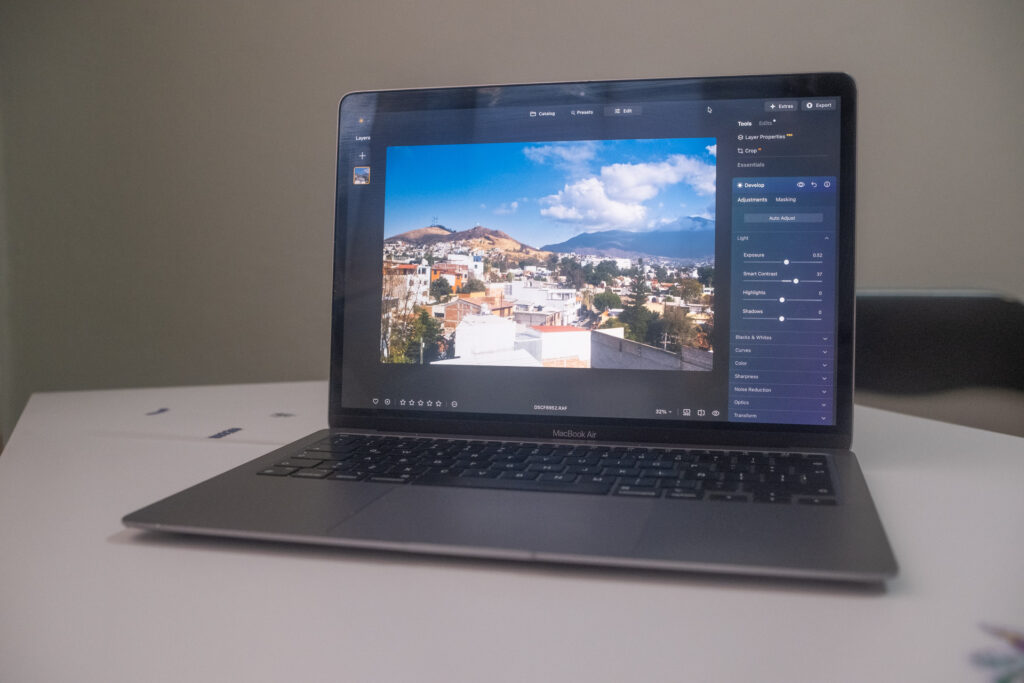
My M1 Macbook Air I use for testing software.
I tested each software on my five-year-old MacBook Air (M1). That detail matters because many beginners assume they need a brand-new, high-powered machine before they can start editing photos properly. In my experience, that is not true for the software in this guide. All three performed well, which means you do not need to rush out and buy the latest laptop just to begin learning.
I have been using each of these tools for multiple years, and they all fit into my workflow in different ways. I also revisited them recently because software like Luminar Neo and Lightroom introduced new features heading into 2026.
Why this testing method matters
A lot of software can look impressive on a feature page, but beginners do not just need features. They need:
- Responsive performance, because laggy tools make simple edits feel frustrating.
- Clear interfaces, because confusing layouts slow down the learning process.
- Practical workflows, because the real test of software is whether it helps you edit better photos consistently.
What I focused on during testing
I paid close attention to:
- How quickly each app loaded JPEG and RAW files.
- How intuitive the layout felt on first use.
- Whether AI tools improved the experience or just added clutter.
- How easily a beginner could understand what each tool was doing.
- Whether the software offered room to grow without becoming overwhelming.
A key beginner takeaway
The best beginner photo editor is not just the one with the most features. It is the one that helps you make your photos look better while teaching you enough to keep improving.
Luminar Neo: The Best Photo Editing Software for Beginners in 2026
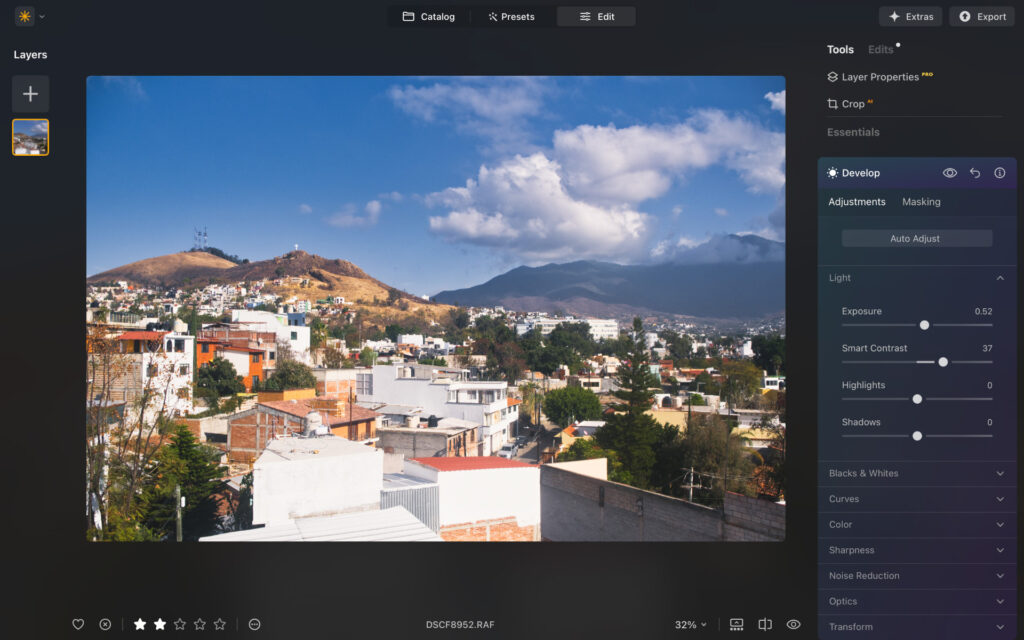
Luminar Neo user interface.
Luminar Neo strikes the ideal balance between simplicity and power. That balance is what makes it my top recommendation. It delivers fast, impressive-looking results without overwhelming you with technical complexity, and at the same time, it helps you understand how photo editing actually works.
Why Luminar Neo stands out
A lot of beginner software is simple because it removes depth. Luminar Neo feels simple because it organizes power intelligently. That is a big difference.
Definition
Luminar Neo is an AI-powered photo editor designed to make high-quality photo enhancement faster and more approachable.
Why it matters
For beginners, the hardest part of editing is often not making the change itself. It is knowing where to begin. Luminar Neo removes much of that hesitation through a combination of strong defaults, clear tool organization, and AI-assisted enhancements.
How to apply it
A beginner can open a flat RAW image, use a core enhancement slider, try a preset, make a few targeted adjustments, and end up with a polished image in a short amount of time.
Real-world value
That speed is important because early success helps you stay motivated. If your first edits look better quickly, you are more likely to keep learning.
Pro tip
The best beginner software should not just save time. It should also reduce intimidation. Luminar Neo does both very well.
The Auto Enhance tool makes editing easier
The Auto Enhance tool improves color, contrast, and tonal range using a single slider, which makes it especially useful for beginners.

Unedited RAW file
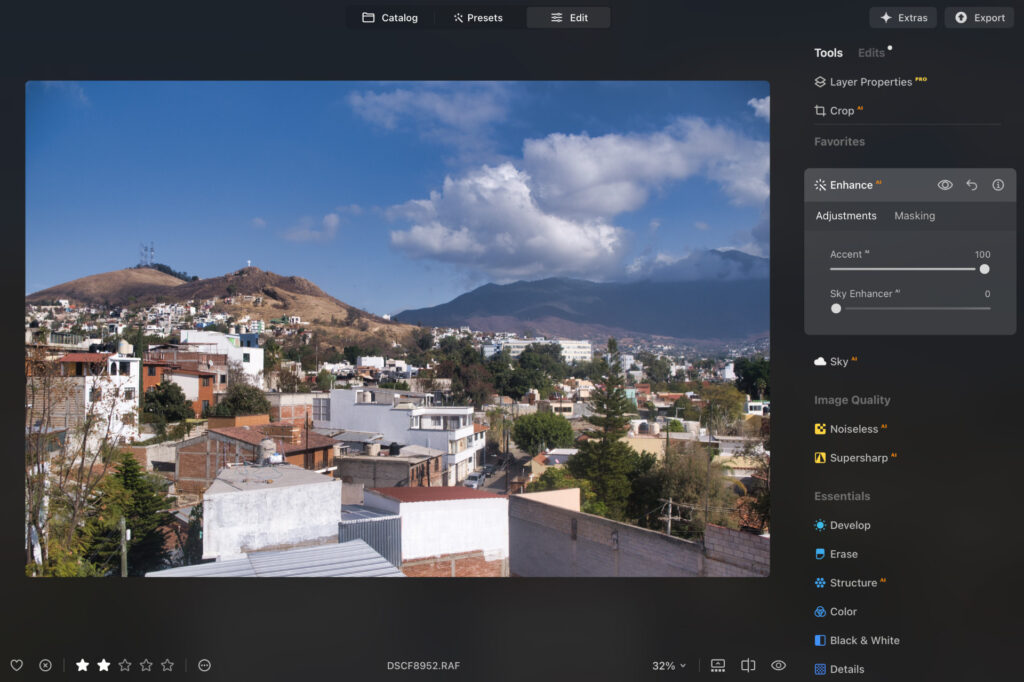
Edited using AI enhance slider.
Definition
Auto Enhance is an AI-assisted correction tool that analyzes your image and applies balanced tonal and color improvements automatically.
Why it matters
Beginners often know a photo looks flat or dull, but they do not yet know whether to fix exposure, contrast, highlights, shadows, or color first. A good auto tool gives you a strong starting point without requiring technical knowledge.
How to use it effectively
- Start by applying the slider gently instead of pushing it all the way.
- Compare the before and after view carefully.
- Use the result as a base, then make small follow-up tweaks if needed.
- Focus on natural-looking improvements rather than dramatic changes.
Real-world scenario
If you shoot a landscape in RAW and it looks a little lifeless straight out of the camera, Auto Enhance can quickly restore depth and vibrancy. It helps the image feel finished without requiring ten separate manual edits.
Nuance
Even a smart AI tool can be overused. The best approach is to treat Auto Enhance as a strong starting foundation rather than your final edit.
Presets help beginners develop taste
Alongside its core adjustments, Luminar Neo offers a strong set of one-click presets, ranging from cinematic looks to more subtle film-inspired styles.
Why presets matter
Presets are useful because they help you experiment visually. They show you how an image can feel when color, tone, and mood shift together in a coherent style.
How beginners should use presets
- Apply a preset to see a possible direction for the image.
- Reduce the intensity if it feels too strong.
- Study what changed, especially in color and contrast.
- Use presets to learn what kind of style you personally prefer.
Common mistake
Some beginners rely on presets as a shortcut and never move beyond them. A smarter approach is to use presets as learning tools and creative inspiration.
Where Luminar Neo really pulls ahead: AI tools
This is the area where Luminar Neo feels especially impressive for new editors. You can:
- Replace skies in seconds.
- Remove distractions quickly.
- Improve sharpness without complicated workflows.
- Use the AI Assistant to describe how you want an image to look and let the software apply edits automatically.
Definition
These are AI-assisted editing tools designed to simplify tasks that would otherwise require more time, skill, or manual masking.
Why it matters
For beginners, advanced edits can feel inaccessible. AI tools lower that barrier and make ambitious-looking results possible much earlier in the learning process.
Real-world example
If your landscape shot has a dull gray sky, sky replacement can dramatically improve mood. If there is a distracting object in the frame, object removal can clean up the scene in moments.
Pro tip
AI tools are most effective when they support a realistic result. The goal is not to make every image look dramatic. The goal is to make good photos look stronger and more intentional.
Luminar Neo: My Real-World Experience
One of the main reasons I recommend Luminar Neo to beginners is because of how well it guides you through the software. This is not just a feature checklist advantage. It genuinely changes how easy the software feels to learn.
Built-in guidance that teaches while you edit
Each tool has an information symbol next to it, and hovering over that symbol explains what the tool does and how to use it.
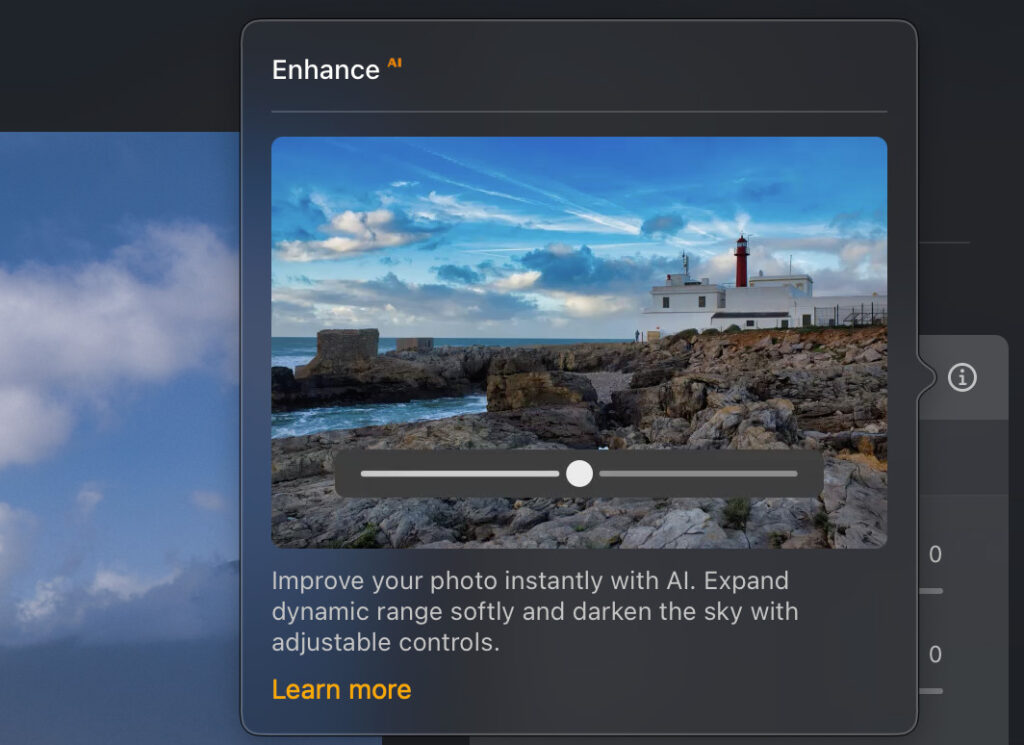
Luminar Neo is best in class for guiding its users through the software.
Why this matters
Most beginners do not want to stop editing every five minutes to search for a tutorial. Learning in context is much more efficient.
How this helps in practice
You can stay inside the software, make an adjustment, read the explanation, and immediately connect the theory to the result on your screen.
Expert insight
This kind of in-app guidance is one of the most underrated qualities in beginner software. It makes the editor feel less like a technical tool and more like a teacher.
A layout that feels inviting
The layout is excellent. I especially like the multicolored categories because they make it much quicker to find specific tools. That may sound like a small visual choice, but it makes the workflow noticeably easier.
Edits also happen in real time, performance feels snappy even on my older MacBook Air, and the AI features add useful creative power quickly.
Why performance matters
If sliders lag or adjustments take too long to render, beginners can start to doubt themselves or feel like editing is harder than it really is. Smooth performance removes that friction.
Real-world takeaway
Luminar Neo feels modern, responsive, and encouraging. That emotional side of software matters more than people think when you are trying to build a new skill.
How Much Does Luminar Neo Cost?
I like Luminar Neo because it does not lock you into a subscription. You pay once and own the software, which keeps long-term costs lower.
- Perpetual Desktop License – $119 (macOS and Windows)
- Cross-Device Perpetual License – $159 (desktop plus mobile apps)
- Perpetual Max License – $179 (desktop, mobile apps, plus extra presets and tools)
Why this pricing model matters
A perpetual license is especially appealing for beginners because it removes the pressure of ongoing monthly payments. If you are still exploring photography and editing, that kind of one-time investment feels easier to justify.
Which plan makes sense for beginners?
- The Desktop license is enough for most people starting out.
- The Cross-Device option makes sense if you also like editing on your phone or tablet.
- The Max plan adds extras, but it is not necessary for learning the fundamentals.
Bottom line on Luminar Neo
If you want a beginner editor that is easy to learn, enjoyable to use, and flexible enough to stay with you long term, Luminar Neo is the strongest option here.
Sign up for Luminar Neo
Related: Honest Long-Term Luminar Neo Review: Read Before You Buy
Lightroom: Best for Precision AI Editing
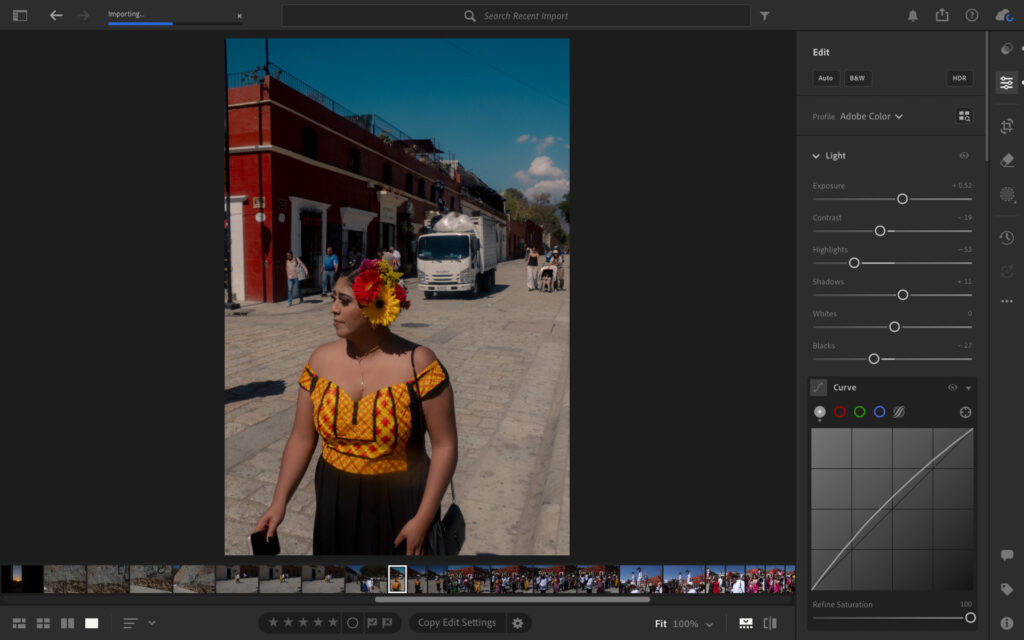
Adobe Lightroom does not offer the widest range of AI tools, but the ones it does include are genuinely among the best available. That makes it a strong choice if you want professional-looking results without having to master every technical detail immediately.
Why Lightroom still works for beginners
Lightroom has long been associated with serious photography, but the Lightroom CC version remains approachable. It presents tools in a structured way and does not dump every advanced option on you all at once.
Definition
Lightroom CC is Adobe’s modern cloud-connected photo editor focused on streamlined editing and organization.
Why it matters
For beginners, this means you get a polished and highly capable tool without feeling forced into a fully professional workflow from day one.
How to use it
You can start with presets, adjust exposure and color, use AI-based corrections when needed, and gradually move into more precise refinements as your confidence grows.
Excellent AI removal and cleanup tools
The AI removal tool is impressively accurate, even around complex edges, and I have found it very reliable in practical use.

Before using the AI removal tools

Lightroom AI detected the people in the photo and I removed them in a single click. I used the brush tool to quickly remove the truck.
Why this matters
Removing distractions is one of the fastest ways to improve a photo, especially travel, street, or casual portrait images. If software makes that process easy, beginners can rescue more images instead of discarding them.
Real-world example
In the example above, Lightroom AI detected the people in the scene and removed them in a single click. The brush tool then made it easy to remove the truck. That is exactly the kind of workflow that feels advanced but remains manageable for a newer editor.
Nuance
The strength of Lightroom’s AI is not just speed. It is precision. Results tend to look clean and believable, which is especially important when you are trying to maintain a natural look.
Presets are one of Lightroom’s biggest strengths
I regularly use Lightroom presets as a starting point, and one of the platform’s biggest advantages is that you can create your own as your style develops.
Why presets matter here
Unlike some simpler apps, Lightroom’s preset ecosystem feels mature and intentional. It supports both speed and consistency, which becomes more useful as you edit more often.
Actionable advice
- Start with a preset only if it matches the mood of the image.
- Fine-tune exposure and white balance afterward.
- Save your favorite settings as your own preset once you notice a pattern in your edits.
Lightroom: My Real-World Experience
What stands out to me most about Lightroom is precision. When I adjust color, exposure, clarity, or contrast, the changes feel controlled and natural rather than overly processed.
Natural-looking edits are a huge advantage
Why this matters
Beginners often overedit because dramatic changes can seem exciting at first. Lightroom helps counter that by making subtle, realistic refinements feel rewarding.
Noise reduction is especially strong
The noise reduction tool is one of the best I have tested. It removes grain while keeping images realistic, which is exactly what you want if you are shooting in low light or trying to recover a slightly rough photo.
Performance in daily use
Performance has also been excellent in my workflow. Large RAW files load quickly, and AI features like AI Bokeh and Generative Subject edits apply clean, believable changes.

Adding lens blur, aka AI bokeh, I was able to make my subject pop.
What this means for beginners
If you want results that feel polished and technically sound, Lightroom gives you that. But while it is easy to use, I still do not find it as enjoyable as Luminar Neo. Luminar feels more creative and more playful, and I think that matters when you are just starting out and trying to build momentum.
Lightroom CC vs Lightroom Classic
It is also worth noting that Lightroom comes in two versions:
- Lightroom (CC)
- Lightroom Classic
I strongly recommend beginners use Lightroom CC, because it is more streamlined and better suited to everyday photographers than Lightroom Classic.
Beginner tip
If you are new to editing, avoid starting with Lightroom Classic unless you already know you want a more traditional, professional desktop workflow.
Learn more in my Lightroom CC vs Lightroom Classic guide.
How Much Does Lightroom Cost?
The main drawback for me is pricing. Lightroom requires a subscription, which means committing to ongoing payments.
- Month-to-month – $17.99
- Monthly with annual commitment – $11.99
- Yearly – $119.88
Why subscription pricing matters
The monthly price is not unreasonable, especially for software from an industry leader. But beginners should think about the long-term cost, not just the entry cost.
Example
At $11.99 per month, Lightroom feels manageable. Over multiple years, though, that total becomes significantly higher than a one-time purchase alternative.
Pro tip
Before subscribing, ask yourself whether you want professional-grade polish badly enough to justify recurring payments. That answer will be different for different people.
Bottom line on Lightroom
Lightroom is excellent if you value precision, natural edits, and a strong preset ecosystem. But for many beginners, the subscription model will be the biggest reason to consider Luminar Neo instead.
Sign up for Lightroom
Polarr: Best Free Photo Editing Software for Beginners

Polarr is about as simple as photo editing gets, and that is exactly why I recommend it to beginners who want to learn the basics without spending money.
Why Polarr works as a starting point
It covers the essentials:
- Exposure
- Contrast
- Saturation
- Highlights
- Shadows
That is enough to understand how editing works at a foundational level.
Definition
Polarr is a lightweight photo editing app focused on straightforward adjustments and quick preset-based editing.
Why it matters
When you are completely new, it helps to work in a stripped-back environment where the basics are easy to grasp.
Actionable use
A beginner can load a JPEG, brighten it slightly, recover shadows, lower harsh highlights, and add a touch of saturation. That simple process teaches several core editing principles without requiring any advanced knowledge.
Preset selection is decent, but limited
The preset selection is good enough for experimentation, but unlike Lightroom, you cannot create your own presets.
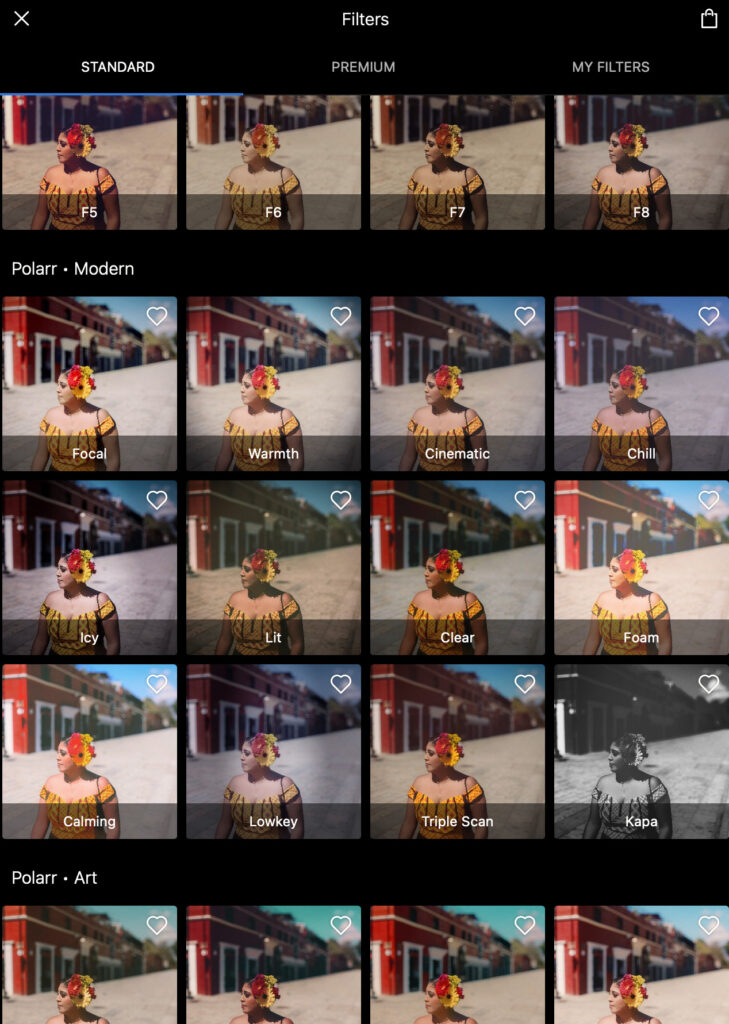
Polarr has plenty of free and paid preset options.
Why this matters
That limitation affects growth. Presets are not just shortcuts; they are also tools for building consistency and refining a personal style.
Nuance
For a completely free app, this limitation is understandable. But it does mean Polarr feels more like a starting point than a long-term editing home.
The biggest limitation: free plan JPEG-only support
The free version only supports JPEG files. That is fine in the beginning, but once you start shooting RAW, you will probably outgrow it quickly.
Why RAW support matters
RAW files contain more image data, which gives you more flexibility when recovering highlights, lifting shadows, and correcting color. Beginners may not care about this on day one, but it becomes important surprisingly fast as they improve.
Minimal AI features
Polarr also lacks advanced AI tools, so I only recommend it if your goal is light, straightforward adjustments rather than creative or corrective edits.
Bottom line
If you want a free way to understand the fundamentals of exposure, contrast, and color, Polarr is a very solid place to start. If you want more ambitious editing potential, you will eventually want more.
Polarr: My Real-World Experience
What I like most about Polarr is how little thinking it requires. I never needed guidance or tutorials because everything is obvious, and the layout makes sense instantly.
The simplicity is the whole appeal
For beginners, this is a huge advantage. It removes friction and makes the editing process feel accessible from the first click.
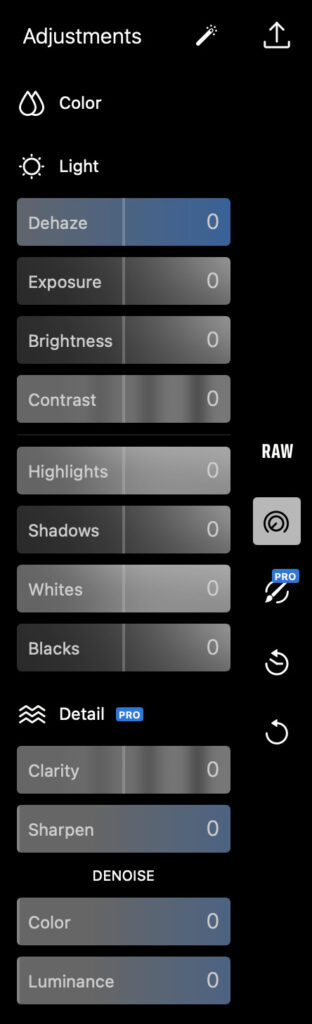
The adjustments panel is basic and you can grasp it quickly.
Performance across devices
I have used Polarr on both a Chromebook and a MacBook, and performance was consistently smooth on both.
Why this matters
Beginners often edit on whatever device they already own. Polarr’s lightweight performance makes it easy to start without worrying too much about hardware limitations.
Preset quality varies
Some presets definitely push things too far, and they are not as refined as what you will find in Luminar Neo or Lightroom. That said, there are a few genuinely good ones, and enough variety to help you experiment and start developing an eye for what works.
Pro tip
If a preset feels too strong, do not dismiss it immediately. Study what it is doing to the image. That can help you understand color mood, contrast style, and tone shaping.
How Much Does Polarr Cost?
Polarr has a free version, but the paid plan unlocks RAW editing and additional tools like sharpening and masking.
- Monthly – $7.99
- Yearly – $47.99
Is the paid plan worth it?
At that price, it is reasonable. But once you are paying for editing software, I think most beginners will be better served stepping up to a more powerful editor that gives them more room to grow.
Who should choose Polarr
Polarr makes the most sense if:
- You want to start for free.
- You are editing mostly JPEGs.
- You want to learn the basics before investing in a more advanced tool.
Sign up for Polarr
Which Photo Editing Software Is Best for You as a Beginner?
If you are still undecided, here is the simplest way to choose.
Choose Luminar Neo if you want:
- The most beginner-friendly overall experience.
- Helpful AI tools that make editing easier rather than more confusing.
- A modern layout that feels enjoyable to use.
- A one-time purchase instead of a subscription.
- Software you can grow into over time.
Choose Lightroom CC if you want:
- More precise control over your edits.
- Excellent AI removal and cleanup tools.
- A refined preset ecosystem.
- Natural-looking image quality.
- A professional platform and do not mind subscription pricing.
Choose Polarr if you want:
- A free way to start editing.
- Very simple tools and minimal complexity.
- A lightweight app for basic JPEG edits.
- A low-pressure environment to learn the fundamentals.
Final Verdict
That is my selection of the best software to use when starting out in photo editing. If you want the best overall choice and one you likely will not need to switch away from anytime soon, then Luminar Neo remains my top pick for most beginners.
It stands out because it combines:
- Beginner-friendly design
- Genuinely useful AI tools
- Fast performance
- Helpful in-app guidance
- Strong long-term value
All three options have either a free trial, free version, or money-back guarantee, so you can try them before making a long-term commitment. That is still the best way to figure out which photo editing software is truly the best fit for you.
If you go with Luminar Neo, use THEMFRAMES10 at checkout to get a discount. Sign up for Luminar Neo.
Frequently Asked Questions
1. What is the best photo editing software for complete beginners in 2026?
For most people, Luminar Neo is the best overall option because it combines a simple interface, beginner-friendly guidance, useful AI tools, and a one-time purchase model. It is especially strong for people who want quick results without feeling overwhelmed.
2. Is Adobe Lightroom good for beginners?
Yes, Lightroom CC is beginner-friendly compared with many professional editors. It is approachable, polished, and powerful. However, it is better suited to beginners who want precision and are comfortable paying for an ongoing subscription.
3. Is Polarr good enough for beginners?
Yes, especially if you want a free and simple place to learn. Polarr covers the basics very well. The main limitation is that the free version does not support RAW files, so it is easier to outgrow.
4. Should beginners choose RAW or JPEG editing software?
Ideally, beginners should choose software that supports both. JPEG is fine for learning, but RAW gives you more flexibility as your skills improve. That is one reason Luminar Neo and Lightroom have a stronger long-term advantage.
5. Are AI tools helpful for learning photo editing?
Yes, when they are implemented well. AI tools can reduce frustration, speed up repetitive corrections, and show beginners what a stronger image can look like. The best AI tools support learning rather than replacing it entirely.
6. Is a one-time purchase better than a subscription for beginners?
For many beginners, yes. A one-time purchase feels lower risk and more affordable over the long run. That is one of Luminar Neo’s biggest strengths. A subscription can still be worth it, but only if you know you will use the software consistently.
7. What should beginners prioritize when choosing photo editing software?
Beginners should look for:
- A clean, intuitive interface
- Core editing tools like exposure and contrast
- Good performance on everyday hardware
- Helpful AI features
- Room to grow over time
- A pricing model that fits their budget