AI & Creative Tech
How to Reverse Image Search on Instagram: Protect Your Photography
Introduction Reverse image search is a powerful tool every photographer should master. Whether you're tracking unauthorized use of your work, finding image s...
Introduction
Reverse image search is a powerful tool every photographer should master. Whether you're tracking unauthorized use of your work, finding image sources, or verifying copyright ownership, reverse image search helps you locate where your images appear online and who's using them.
This guide walks you through the best methods to reverse search Instagram pictures and protect your photography work from unauthorized use.
Why Photographers Need Reverse Image Search
Track Unauthorized Use: Identify when your photos are used without permission and take action against image theft.
Find Higher-Resolution Versions: Locate better quality copies of images you like.
Verify Copyright Ownership: Confirm who created an image before using it legally.
Monitor Your Work: Discover how your images are being used, modified, and shared across the web.
How to Reverse Image Search Instagram Photos
Step 1: Save the Instagram Image
Desktop: Right-click the image and select "Save image as."
Mobile: Press and hold the image, select "Save," or take a screenshot.
Step 2: Choose Your Search Tool
Best Reverse Image Search Tools
Lenso.ai

Lenso.ai offers three specialized search engines: Reverse Image Search, Face Search, and Copyright Search. It searches billions of images with email alerts for new matches.
Best For: Professional photographers needing comprehensive monitoring and detailed results.
How to Use: Upload your image, select search type, and launch. Membership shows all results with sources.
Google Reverse Image Search
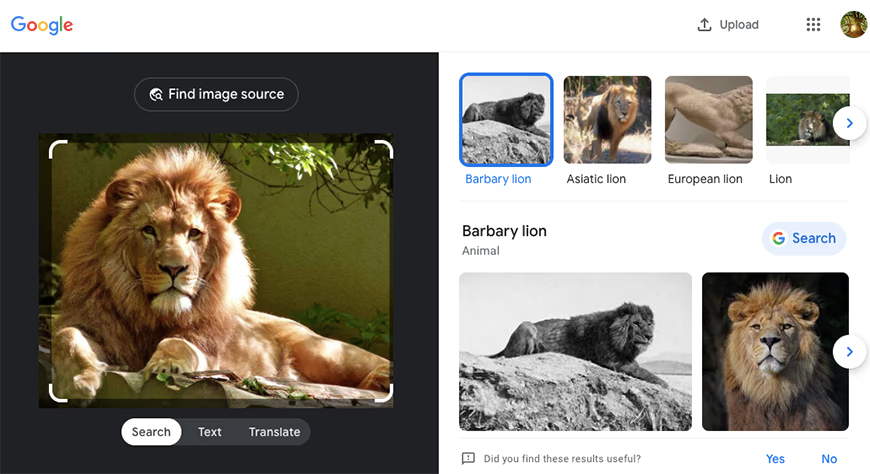
Google's reverse image search is free and searches trillions of images. Go to Google Images, click the camera icon, upload your image, and search. Use "Find image source" to show only pages with the exact image.
Best For: Quick, free searches for general users and photographers.
Bing Visual Search
Bing provides instant reverse image search with categorized results: "Pages with this image," "Related products," and "Related content." Filter by website or date to find the original source.
Best For: Users wanting immediate results with intuitive categorization.
TinEye Reverse Image Search
TinEye pioneered reverse image search and excels at finding images based on cropped sections. It's free for non-commercial use with a 20 MB file size limit.
Best For: Finding exact matches, including partial or cropped images.
Pinterest and Getty Images
Pinterest searches for similar images and products. Getty Images searches professional photography within its database. Both are useful but more limited than Google or TinEye.
Using Reverse Image Search Apps on Mobile
Reverse Image Search App: Free app using multiple search engines with extensive results.
Search by Image: Free app with multi-engine search and advanced filtering by color, size, or format.
Photo Sherlock: Uses Google and Bing to find image sources and search for people by photo.
Google Lens: AI-powered app integrated with Google Photos. Identifies objects, text, creatures, and plants. Available on Android and iOS.
Veracity: Free iOS app using AI to reverse search images and locate sources.
Practical Tips for Effective Reverse Image Searching
- Try Multiple Tools: Different search engines index different images. If one doesn't find results, try another.
- Use Cropped Sections: Advanced tools like TinEye can find images based on partial sections.
- Check Oldest Source: Look for the oldest date to find the original upload or creator.
- Set Up Alerts: Tools like Lenso.ai offer email alerts to notify you when your images appear in new locations.
- Monitor Regularly: Make reverse image searching part of your regular workflow to catch unauthorized use early.
Protecting Your Photography Work
- Regularly search for your images to catch unauthorized use
- Add watermarks to deter theft
- Build a record of where your images appear
- Report copyright violations to websites and platforms
- Consider copyright protection services for high-value work
Conclusion
Reverse image search is essential for modern photographers. Whether protecting your own work or finding image sources, these tools give you control over your digital presence. By mastering reverse image search, you ensure your photography is used ethically and legally.
FAQ
What is reverse image search? Reverse image search allows you to upload an image and find where that image (or similar images) appears online. Instead of searching by keywords, you search by an actual image file.
Is reverse image search free? Many tools are free, including Google Images, Bing Visual Search, TinEye (non-commercial), and Pinterest. Professional tools like Lenso.ai offer paid subscriptions for advanced features.
Can reverse image search find edited or cropped images? Yes, advanced tools like TinEye and Lenso.ai can find edited or cropped images. However, heavily edited images may be harder to locate.
How can I use reverse image search to protect my photography? Regularly reverse search your images to monitor where they appear. Set up alerts to be notified when your images are found in new locations. Use this information to report copyright violations.
Which tool is best for photographers? For professionals, Lenso.ai offers comprehensive features including copyright search. For casual users, Google Images and TinEye are excellent free options.